How I make my "painted" mood themes
Jun. 16th, 2026 08:41 pm![[personal profile]](https://www.dreamwidth.org/img/silk/identity/user.png) soc_puppet
soc_puppetI started coloring in the first pigeons for my Fancy Pigeon mood theme last night, and decided to take screencaps of the process as I went! I figured that it might help demystify the process for anyone who might want to get started, or who's just interested in how I do things.
I've decided to call this style my "painted" style, as opposed to my "pixel" style, which, in contrast, is almost entirely pixel art with a lot of very minor changes.
Here's how I get started with my "painted" style:
First I draw the image. I'm starting with "Confused", for no particular reason, except that the delightful person who volunteered their pigeons' images had a couple of really cute photos of this particular pigeon (named Hercules) looking at himself in a mirror and presumably being confused 😛

Next, I trim off the excess so I only have what I plan to paint:

After that, I resize the image to about 200x200 pixels; that's the size I like to work at for this style. Confused actually came in at 200x213 pixels, but that's close enough in this case.

With the image the size I want it, it's time to get my colors in order! I make sure I have my palette of "websafe" colors open (bottom middle), as well as my separate palette of frequently used color and color combination swatches (upper right). This particular swatch collection is mostly what I used for my Fancy Rats, since they've got some pretty similar base colors to pigeons, with the green and purple sampled from Envious (used as my mood below because that was fastest rather than because I particularly feel that way right now).

Now I'm ready to paint! I start by adding three Rastor layers, so I'm not painting directly on the drawing. I pick an outline shade that's a slightly darker version of whatever the fill shade I want is; in this case, since the pigeon I'm painting is mostly white with brownish-red markings, I'm outlining the body primarily in light beige. (I may change this up in the future; pigeons get a bit more red than rats do, so a more pinkish-red outline color may suit better!) I also color in the eye and add in the question mark above the pigeon's head.
Incidentally, I use a brush size of 5 pixels in diameter for this.

I've skipped ahead a bit here 😅 After outlining the mirror image of the pigeon on the top layer as well and adding a white highlight (3 pixel diameter) to each of their eyes, I move to second layer down and start coloring in. That's white for most of the pigeons' body, with reddish-brown for his central wing feathers. I then moved back to the top layer and re-did the lines outside the reddish-brown feathers in a darker reddish-brown; while I would usually do the different colored lines at the same time with my Fancy Rats, I guess I'm still a little nervous of where to put them with the pigeons, so I didn't get to it until after I added in the extra color.
The legs and the beak I added on this layer as well, so it looks like the feathers of his legs and face go on top of them.

Now it's time to add the mirror! I get a little bit more granular here than I need to, honestly, but hopefully it's still helpful to someone. Anyway, I flat-out used a shape insertion and plopped a periwinkle ellipse right on top of the mirror drawing. Since the ellipse tool is a vector tool, it automatically added a new vector layer on top of the layer I'd been working on; this being the top layer, the ellipse now covers everything below it, lines, coloring, and sketch in all.

It's not much of a mirror if I can't see the reflection, now is it? I converted the vector layer to a rastor layer and slightly erased the ellipse. (I cranked the eraser size up to 60 pixels in diameter and the opacity strength to 67%, leaving a 33% opaque ellipse.) If I were to do this again, I'd probably use a select tool in an ellipse shape and fill at 33% opacity instead (fewer steps), but this worked fine. Anyway, you can now see the pigeon's reflection again, this time as if behind a thin layer of glass.
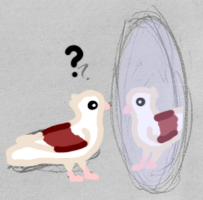
That doesn't look enough like a mirror, though! It looks more like a window. I got the ellipse tool out again, picked a slightly darker periwinkle color, and added another ellipse of a very similar size right between the coloring layer and the sketch layer.

That's closer, but still not quite a mirror! It looks more like a painted portrait. Some quick near-horizontal white lines over the top layer add the impression of reflectivity.
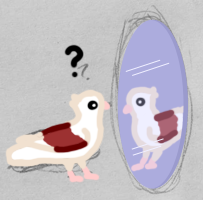
And it's done! Or, well, the painting part is; time to get rid of that bottom sketch layer and turn the final image in to a .PNG file. I delete the bottom layer and select Merge Visible from the layers menu. My goal is to create an image that's a single layer; Flatten Image would also do this, but it would give the image a solid colored background, instead of the transparency I want for a .PNG, which is why I used Merge Visible instead.
(I also very minorly tweaked where the mirror pigeon's eye highlight was, just to make it look a bit better.)
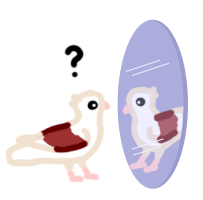
A handsome lad who wants to know more about that pigeon in the mirror! It's a little large for the official Dreamwidth mood theme image size, however, so I resize it to 100 pixels at its widest, then trim off the excess "drawing room" pixels. And voila! A finished Confused pigeon:

...Mostly finished. I should move the question mark to be more directly over his head.
I hope that was entertaining and/or enlightening for you! I don't anticipate doing this for every mood (especially since I already finished Okay without saving any mid-process examples 😂), but I think it was fun to do at least once 👍
I've decided to call this style my "painted" style, as opposed to my "pixel" style, which, in contrast, is almost entirely pixel art with a lot of very minor changes.
Here's how I get started with my "painted" style:
First I draw the image. I'm starting with "Confused", for no particular reason, except that the delightful person who volunteered their pigeons' images had a couple of really cute photos of this particular pigeon (named Hercules) looking at himself in a mirror and presumably being confused 😛
Next, I trim off the excess so I only have what I plan to paint:
After that, I resize the image to about 200x200 pixels; that's the size I like to work at for this style. Confused actually came in at 200x213 pixels, but that's close enough in this case.
With the image the size I want it, it's time to get my colors in order! I make sure I have my palette of "websafe" colors open (bottom middle), as well as my separate palette of frequently used color and color combination swatches (upper right). This particular swatch collection is mostly what I used for my Fancy Rats, since they've got some pretty similar base colors to pigeons, with the green and purple sampled from Envious (used as my mood below because that was fastest rather than because I particularly feel that way right now).

Now I'm ready to paint! I start by adding three Rastor layers, so I'm not painting directly on the drawing. I pick an outline shade that's a slightly darker version of whatever the fill shade I want is; in this case, since the pigeon I'm painting is mostly white with brownish-red markings, I'm outlining the body primarily in light beige. (I may change this up in the future; pigeons get a bit more red than rats do, so a more pinkish-red outline color may suit better!) I also color in the eye and add in the question mark above the pigeon's head.
Incidentally, I use a brush size of 5 pixels in diameter for this.
I've skipped ahead a bit here 😅 After outlining the mirror image of the pigeon on the top layer as well and adding a white highlight (3 pixel diameter) to each of their eyes, I move to second layer down and start coloring in. That's white for most of the pigeons' body, with reddish-brown for his central wing feathers. I then moved back to the top layer and re-did the lines outside the reddish-brown feathers in a darker reddish-brown; while I would usually do the different colored lines at the same time with my Fancy Rats, I guess I'm still a little nervous of where to put them with the pigeons, so I didn't get to it until after I added in the extra color.
The legs and the beak I added on this layer as well, so it looks like the feathers of his legs and face go on top of them.
Now it's time to add the mirror! I get a little bit more granular here than I need to, honestly, but hopefully it's still helpful to someone. Anyway, I flat-out used a shape insertion and plopped a periwinkle ellipse right on top of the mirror drawing. Since the ellipse tool is a vector tool, it automatically added a new vector layer on top of the layer I'd been working on; this being the top layer, the ellipse now covers everything below it, lines, coloring, and sketch in all.
It's not much of a mirror if I can't see the reflection, now is it? I converted the vector layer to a rastor layer and slightly erased the ellipse. (I cranked the eraser size up to 60 pixels in diameter and the opacity strength to 67%, leaving a 33% opaque ellipse.) If I were to do this again, I'd probably use a select tool in an ellipse shape and fill at 33% opacity instead (fewer steps), but this worked fine. Anyway, you can now see the pigeon's reflection again, this time as if behind a thin layer of glass.
That doesn't look enough like a mirror, though! It looks more like a window. I got the ellipse tool out again, picked a slightly darker periwinkle color, and added another ellipse of a very similar size right between the coloring layer and the sketch layer.
That's closer, but still not quite a mirror! It looks more like a painted portrait. Some quick near-horizontal white lines over the top layer add the impression of reflectivity.
And it's done! Or, well, the painting part is; time to get rid of that bottom sketch layer and turn the final image in to a .PNG file. I delete the bottom layer and select Merge Visible from the layers menu. My goal is to create an image that's a single layer; Flatten Image would also do this, but it would give the image a solid colored background, instead of the transparency I want for a .PNG, which is why I used Merge Visible instead.
(I also very minorly tweaked where the mirror pigeon's eye highlight was, just to make it look a bit better.)
A handsome lad who wants to know more about that pigeon in the mirror! It's a little large for the official Dreamwidth mood theme image size, however, so I resize it to 100 pixels at its widest, then trim off the excess "drawing room" pixels. And voila! A finished Confused pigeon:
I hope that was entertaining and/or enlightening for you! I don't anticipate doing this for every mood (especially since I already finished Okay without saving any mid-process examples 😂), but I think it was fun to do at least once 👍


no subject
Date: 2026-06-17 08:01 am (UTC)Yes ...
Date: 2026-06-17 08:19 am (UTC)no subject
Date: 2026-06-17 09:00 am (UTC)That's so clever!